
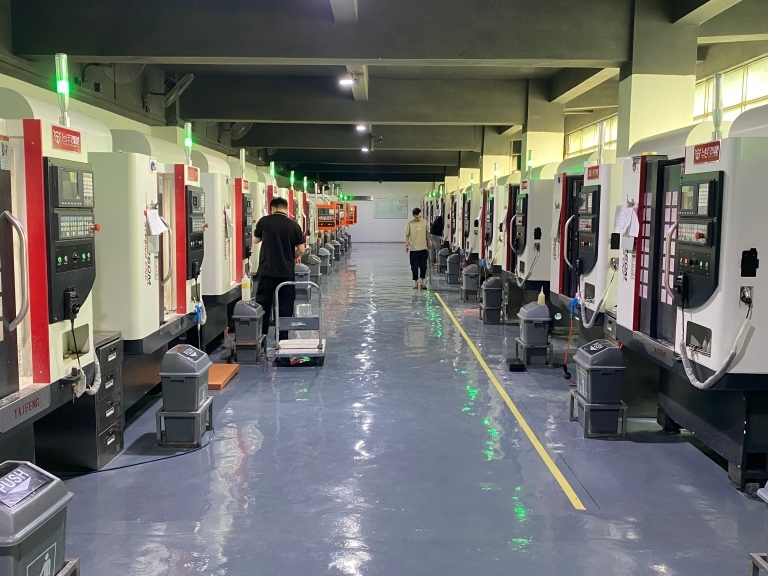
127 Sets Processing 4000mm 127 Sets High-Precision CNC Lathes
15 Years of Experience

How To Control A CNC Machine Using An Arduino Uno?

For engineers, makers, and prototyping enthusiasts, the idea of controlling a CNC machine using an Arduino Uno represents a fascinating intersection of accessible microcontroller technology and precision manufacturing. It embodies the DIY spirit of taking control of the fabrication process. While professional-grade industrial CNCs rely on dedicated, powerful controllers, an Arduino-based setup opens doors to […]

For engineers, makers, and prototyping enthusiasts, the idea of controlling a CNC machine using an Arduino Uno represents a fascinating intersection of accessible microcontroller technology and precision manufacturing. It embodies the DIY spirit of taking control of the fabrication process. While professional-grade industrial CNCs rely on dedicated, powerful controllers, an Arduino-based setup opens doors to custom automation, educational projects, and low-volume prototype machining. This exploration delves into the how, the why, and the critical considerations of such an undertaking.

Understanding the Core Concept: Arduino as the Brain, Not the Muscle

At its heart, a CNC machine is a computer-controlled system that moves a tool along programmed paths. An Arduino Uno, with its versatile I/O pins and programming environment, can serve as the system’s “brain” to interpret commands and send step/direction signals. However, it’s crucial to understand the Arduino’s role:

It is a motion controller and signal generator. It reads G-code (or simpler commands), calculates trajectories, and outputs precise digital pulses to stepper motor drivers.
It is NOT a motor driver or power supply. The Arduino’s pins cannot provide the high current needed to drive stepper motors directly. It acts as the command center for external drivers (like TB6600 or DRV8825 modules).
It is best suited for lightweight applications. Think small desktop CNC routers for wood/acrylic, engravers, PCB mills, or simple 3-axis manipulators, not for machining steel or aluminum with industrial rigidity.

The Essential System Architecture

Building a system to control a CNC machine using an Arduino Uno involves several key components working in concert:
图片


The Arduino Uno: The main microcontroller.
CNC Shield (Highly Recommended): A specialized add-on board that mounts directly onto the Arduino. It provides organized connections for up to 4 stepper motor drivers, spindle control, limit switches, and coolant control. Popular versions are compatible with Pololu-style drivers.
Stepper Motor Drivers: Modules like A4988 (for smaller motors) or TB6600 (for NEMA 17, 23, 34). These interpret the Arduino’s step/direction signals and deliver the appropriate power to the motors.
Stepper Motors: NEMA 17 or NEMA 23 are common choices for desktop machines.
Power Supply: A separate, robust DC power supply (e.g., 24V/36V, 10A+) to power the motors via the drivers. The Arduino is powered separately via USB or its DC jack.
The CNC Machine Mechanics: The actual frame, linear guides, lead screws, and spindle/router.

Step-by-Step Guide to Setup and Control

Step 1: Hardware Assembly

Mount the CNC Shield onto the Arduino Uno.
Insert the stepper motor drivers into the designated slots on the shield (X, Y, Z, and sometimes A for a 4th axis).
Connect the stepper motors to the driver terminals, ensuring correct coil pairing (use a multimeter to find coil pairs if undocumented).
Connect the high-power DC supply to the shield’s power terminal block.
Connect limit switches (highly advised for safety and homing) to their dedicated pins on the shield.
Connect the spindle control (often a PWM signal to a relay or a VFD) if applicable.

Step 2: Software and Firmware Installation

Install the Arduino IDE on your computer.
You will need specialized firmware to run on the Arduino to make it understand G-code. GRBL is the undisputed, open-source champion for this purpose.

GRBL is a high-performance G-code parser and motion controller firmware written in optimized C for the Arduino. It translates standard G-code commands into smooth, accelerated stepper motor movements.

Upload the GRBL firmware to your Arduino Uno via the IDE. This transforms the Arduino into a dedicated G-code interpreter.

Step 3: Configuration and Tuning

Once GRBL is uploaded, you communicate with it via a serial terminal (like the Arduino Serial Monitor, or better, dedicated software).
You must set critical GRBL parameters ($-settings) to match your machine’s physics:

$100, $101, $102: Steps per millimeter for X, Y, Z axes. This is calculated from your motor steps/rev, driver microstepping setting, and lead screw pitch.
$110, $111, $112: Maximum travel speed (mm/min).
$120, $121, $122: Acceleration (mm/sec²).
$130, $131, $132: Maximum travel limits (mm).

Proper tuning of speed and acceleration is vital to prevent lost steps (where the motor doesn’t move as far as commanded), which ruin machining accuracy.

Step 4: Sending G-code to Your Machine

You need a sender software on your PC to stream G-code files to the Arduino/GRBL. Universal G-code Sender (UGS), Candle, and bCNC are excellent free options.
This software opens a serial connection, allows for manual machine control (jogging), and feeds the G-code line by line to the controller.
You create G-code using CAD/CAM software (e.g., Fusion 360, EstlCAM, VCarve). You design a part, define toolpaths (contours, pockets, drilling), and the CAM software posts the toolpaths as a G-code file tailored for GRBL.

Critical Considerations and Limitations

While empowering, this approach has boundaries that a professional manufacturer like GreatLight CNC Machining Factory is structured to transcend:

Performance Cap: The Arduino Uno’s 8-bit ATmega328P processor and GRBL’s architecture have finite processing speed. This can limit the complexity of G-code (lots of short line segments) and the overall feed rates achievable compared to a dedicated motion controller.
Real-World Precision & Rigidity: The ultimate precision of a machined part depends more on the mechanical rigidity of the machine frame, bearing quality, and thermal stability than the controller’s step resolution. A DIY machine often lacks the cast iron construction and pre-tensioned ball screws of an industrial VMC.
Material Limitations: Desktop machines driven by this setup typically lack the torque, rigidity, and cooling to effectively and safely machine hard metals like stainless steel or titanium with any meaningful precision or surface finish.
Lack of Advanced Features: Industrial controllers offer advanced look-ahead, adaptive feed control, torque management, and seamless integration with probes and tool changers—features beyond GRBL’s scope.

Conclusion: A Powerful Learning Tool, a Bridge to Professional Needs

Learning how to control a CNC machine using an Arduino Uno is an invaluable educational journey. It demystifies CNC operation, teaches the fundamentals of G-code, motion control, and system integration. It’s perfect for prototyping ideas in softer materials, creating custom fixtures, or educational workshops.

However, when your project demands true high precision, complex 5-axis geometries, material integrity in aerospace alloys, or consistent production quality, the limitations of a DIY system become apparent. This is where the expertise and industrial-grade infrastructure of a partner like GreatLight CNC Machining Factory become essential. We leverage advanced, multi-axis CNC machining centers governed by proprietary, high-speed controllers to deliver tolerances within ±0.001mm, handle exotic materials, and ensure repeatability across production runs. The Arduino project ignites the spark of creation; professional CNC services like ours provide the reliable, precise furnace to turn that spark into a finished, high-performance component.
图片

Frequently Asked Questions (FAQ)

Q1: Can I control a 5-axis CNC machine with an Arduino Uno and GRBL?
A: Standard GRBL is designed for 3 axes (X, Y, Z). While there are forks and modifications (like GRBL-ESP32) that support more axes, controlling a true, coordinated 5-axis machine for complex simultaneous machining is exceedingly challenging. The kinematics (mathematical transformations for tool center point control) are non-trivial and require much more computational power than an Uno provides. Professional 5-axis work is firmly in the domain of industrial controllers.

Q2: What is the most common problem when setting this up, and how do I fix it?
A: Lost steps is the most frequent issue. It manifests as the machine ending up in a different position than commanded, ruining the part. Causes and fixes:

Acceleration/Speed too high: Reduce $120/$121/$122 (acceleration) and $110/$111/$112 (max speed) in GRBL.
Insufficient motor current: Adjust the current limit potentiometer on your stepper driver (consult its datasheet).
Mechanical binding: Ensure all axes move freely by hand when disengaged.
Weak power supply: Use a power supply with sufficient voltage and current (amperage) rating.

Q3: Is it safe to machine metals with an Arduino-controlled desktop CNC?
A: It requires extreme caution. Machining metals generates significant force, heat, and sharp chips. A desktop machine must be very robustly built. Always start with soft metals like aluminum at low depths of cut and feed rates. Essential safety: Wear safety glasses, secure your workpiece firmly, and understand emergency stop procedures. Never leave the machine unattended.

Q4: My company needs functional prototypes in PEEK or Titanium. Can this method work?
A: For demanding engineering polymers like PEEK or metals like titanium, a DIY Arduino-based system is not recommended. These materials require specific cutting speeds, feeds, rigidity, and cooling to be machined properly without damaging the material or the tool. For such high-performance prototypes, partnering with a professional service equipped for precision CNC machining is the only reliable path to achieving usable, dimensionally accurate parts.

Q5: How does the cost of building this compare to using a professional service?
A: The DIY route has a lower upfront cash cost for hardware (a few hundred dollars) but a very high time cost for learning, building, and debugging. The professional service has a higher per-part cost but provides guaranteed precision, material certification, time savings, and zero capital investment in equipment. The choice depends entirely on your priority: learning and low-cost experimentation (DIY) vs. obtaining a guaranteed, precision result for product development (professional service). For insights into how leading manufacturers operate, you can follow industry advancements on platforms like LinkedIn{:target=”_blank”}.


图片

CNC Experts

Picture of JinShui Chen

JinShui Chen

Rapid Prototyping & Rapid Manufacturing Expert

Specialize in CNC machining, 3D printing, urethane casting, rapid tooling, injection molding, metal casting, sheet metal and extrusion

CNC Recent Posts

CNC News

Welcome to GreatLight Metal,Maximum Processing Size 4,000 mm

Precision Machining CNC Quote Online

Loading file

Upload Click here to upload or drag and drop your model to the canvas.

The model is too large and has been resized to fit in the printer's build tray. [Hide]

The model is too large to fit in the printer's build tray. [Hide]

The model is too large, a fitting printer is selected. [Hide]

The model is too small and has been upscaled. [Hide]

Warning: The selected printer can not print in full color [Hide]

Warning: obj models with multiple meshes are not yet supported [Hide]

Warning: Unsupported DXF entity  [Hide]

Warning: could not arrange models [Hide]

[Hide]


File Unit:      
Scale:
%
L × W × H:
X: × Y: × Z:  cm 
Rotation:
X: ° Y: °  
⚡ Instant Quote for Precision Manufacturing

Submit your design files (STEP/IGES/DWG) and receive a competitive quote within 1 hour, backed by ISO 9001-certified quality assurance.

📋 How It Works

  1. Upload & SpecifyShare your 3D model and select materials (Aluminum/Stainless Steel/Titanium/PEEK), tolerances (±0.002mm), and surface treatments.

  2. AI-Powered AnalysisOur system calculates optimal machining strategy and cost based on 10+ years of automotive/aerospace data.

  3. Review & ConfirmGet a detailed breakdown including:
    - Volume pricing tiers (1-10,000+ units)
    - Lead time (3-7 days standard)
    - DFM feedback for cost optimization

Unit Price: 

Loading price
5 Axis CNC Machining Equipment
4 Axis CNC Machining Equipment
3 Axis CNC Machining Equipment
CNC Milling & Turning Equipment
Prototype and Short-Run Injection Moldings Exact plastic material as final design
Volume Metal Die Casting Services - Precision Cast Parts
Bridge the Gap From Prototype to Production – Global delivery in 10 days or less
Custom high-precision sheet metal prototypes and parts, as fast as 5 days.
Custom Online 3D Printing Services
Design Best Processing Method According To 3D Drawings
Alloys Aluminum 6061, 6061-T6 Aluminum 2024 Aluminum 5052 Aluminum 5083 Aluminum 6063 Aluminum 6082 Aluminum 7075, 7075-T6 Aluminum ADC12 (A380)
Alloys Brass C27400 Brass C28000 Brass C36000
Alloys Stainless Steel SUS201 Stainless Steel SUS303 Stainless Steel SUS 304 Stainless Steel SUS316 Stainless Steel SUS316L Stainless Steel SUS420 Stainless Steel SUS430 Stainless Steel SUS431 Stainless Steel SUS440C Stainless Steel SUS630/17-4PH Stainless Steel AISI 304
Inconel718
Carbon Fiber
Tool Steel
Mold Steel
Alloys Titanium Alloy TA1 Titanium Alloy TA2 Titanium Alloy TC4/Ti-6Al 4V
Alloys Steel 1018, 1020, 1025, 1045, 1215, 4130, 4140, 4340, 5140, A36 Die steel Alloy steel Chisel tool steel Spring steel High speed steel Cold rolled steel Bearing steel SPCC
Alloys Copper C101(T2) Copper C103(T1) Copper C103(TU2) Copper C110(TU0) Beryllium Copper
Alloys Magnesium Alloy AZ31B Magnesium Alloy AZ91D
Low Carbon Steel
Alloys Magnesium Alloy AZ31B Magnesium Alloy AZ91D
ABS Beige(Natural) ABS Black ABS Black Antistatic ABS Milky White ABS+PC Black ABS+PC White
PC Black PC Transparent PC White PC Yellowish White PC+GF30 Black
PMMA Black PMMA Transparent PMMA White
PA(Nylon) Blue PA6 (Nylon)+GF15 Black PA6 (Nylon)+GF30 Black PA66 (Nylon) Beige(Natural) PA66 (Nylon) Black
PE Black PE White
PEEK Beige(Natural) PEEK Black
PP Black PP White PP+GF30 Black
HDPE Black HDPE White
HIPS Board White
LDPE White
This is a finish of applying powdered paint to the components and then baking it in an oven, which results in a stronger, more wear- and corrosion-resistant layer that is more durable than traditional painting methods.
No coating required, product’s natural color!
This is a finish of applying powdered paint to the components and then baking it in an oven, which results in a stronger, more wear- and corrosion-resistant layer that is more durable than traditional painting methods.
This finishing option with the shortest turnaround time. Parts have visible tool marks and potentially sharp edges and burrs, which can be removed upon request.
Sand blasting uses pressurized sand or other media to clean and texture the surface, creating a uniform, matte finish.
Polishing is the process of creating a smooth and shiny surface by rubbing it or by applying a chemical treatmen
A brushed finish creates a unidirectional satin texture, reducing the visibility of marks and scratches on the surface.
Anodizing increases corrosion resistance and wear properties, while allowing for color dyeing, ideal for aluminum parts.
Black oxide is a conversion coating that is used on steels to improve corrosion resistance and minimize light reflection.
Electroplating bonds a thin metal layer onto parts, improving wear resistance, corrosion resistance, and surface conductivity.
This is a finish of applying powdered paint to the components and then baking it in an oven, which results in a stronger, more wear- and corrosion-resistant layer that is more durable than traditional painting methods.
Please provide additional text description for other surface treatment requirements!
Material
Material
  • CNC Metals
    • Aluminum
    • Brass
    • Stainless steel
    • Inconel718
    • Carbon Fiber
    • Tool Steel
    • Mold Steel
    • Titanium
    • Alloy Steel
    • Copper
    • Bronze
    • Low Carbon Steel
    • Magnesium
  • CNC Plastics
    • ABS
    • PC
    • PMMA (Acrylic)
    • PA (Nylon)
    • PE
    • PEEK
    • PP
    • HDPE
    • HIPS
    • LDPE
Printer
Printer
  • CNC Metals
    • 5 Axis CNC Machining
    • 4 Axis CNC Machining
    • 3 Axis CNC Machining
    • CNC Milling & Turning
    • Rapid Tooling
    • Metal Die Casting
    • Vacuum Casting
    • Sheet Metal Fabrication
    • SLA 3D Printing
    • SLS 3D Printing
    • SLM 3D Printing
  • Rapid Prototyping
    • Design Best Processing Method According To 3D Drawings
Post-processing
Post-processing
  • As Machined(Product’s natural color)
  • Sand Blasting
  • Polishing
  • Brushed Finish
  • Anodizing
  • Black Oxide
  • Electroplating
  • Paint Coating
  • Powder Coating
  • Other surface treatment requirements
Finalize
The world's first CNC machining center that dares to provide free samples!

Free for first product valued at less than $200. (Background check required)

precision machining cnc quote online

15 Years CNC Machining Services

When you’re ready to start your next project, simply upload your 3D CAD design files, and our engineers will get back to you with a quote as soon as possible.
Scroll to Top

ISO 9001 Certificate

ISO 9001 is defined as the internationally recognized standard for Quality Management Systems (QMS). It is by far the most mature quality framework in the world. More than 1 million certificates were issued to organizations in 178 countries. ISO 9001 sets standards not only for the quality management system, but also for the overall management system. It helps organizations achieve success by improving customer satisfaction, employee motivation, and continuous improvement. * The ISO certificate is issued in the name of FS.com LIMITED and applied to all the products sold on FS website.

greatlight metal iso 9001 certification successfully renewed
GB T 19001-2016 IS09001-2015
✅ iso 9001:2015
greatlight metal iso 9001 certification successfully renewed zh

IATF 16949 certificate

IATF 16949 is an internationally recognized Quality Management System (QMS) standard specifically for the automotive industry and engine hardware parts production quality management system certification. It is based on ISO 9001 and adds specific requirements related to the production and service of automotive and engine hardware parts. Its goal is to improve quality, streamline processes, and reduce variation and waste in the automotive and engine hardware parts supply chain.

automotive industry quality management system certification 01
Certification of Production Quality Management System for Engine Hardware Parts Engine Hardware Associated Parts
automotive industry quality management system certification 00
发动机五金零配件的生产质量管理体系认证

ISO 27001 certificate

ISO/IEC 27001 is an international standard for managing and processing information security. This standard is jointly developed by the International Organization for Standardization (ISO) and the International Electrotechnical Commission (IEC). It sets out requirements for establishing, implementing, maintaining, and continually improving an information security management system (ISMS). Ensuring the confidentiality, integrity, and availability of organizational information assets, obtaining an ISO 27001 certificate means that the enterprise has passed the audit conducted by a certification body, proving that its information security management system has met the requirements of the international standard.

greatlight metal technology co., ltd has obtained multiple certifications (1)
greatlight metal technology co., ltd has obtained multiple certifications (2)

ISO 13485 certificate

ISO 13485 is an internationally recognized standard for Quality Management Systems (QMS) specifically tailored for the medical device industry. It outlines the requirements for organizations involved in the design, development, production, installation, and servicing of medical devices, ensuring they consistently meet regulatory requirements and customer needs. Essentially, it's a framework for medical device companies to build and maintain robust QMS processes, ultimately enhancing patient safety and device quality.

greatlight metal technology co., ltd has obtained multiple certifications (3)
greatlight metal technology co., ltd has obtained multiple certifications (4)

Get The Best Price

Send drawings and detailed requirements via Email:[email protected]
Or Fill Out The Contact Form Below:

All uploads are secure and confidential.












