
Your Complete Guide to Mastering Touch Pad CNC Machine Operation
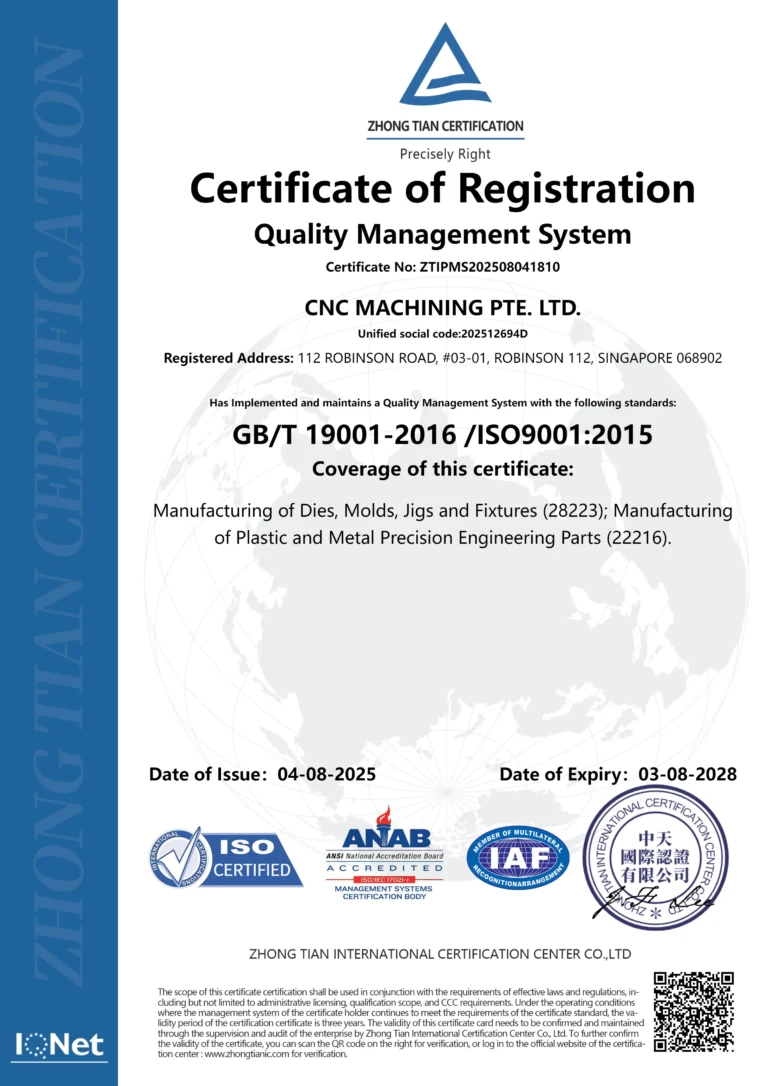
This FAQ addresses common questions when learning to operate touch pad CNC machines. Designed for machinists, shop-floor technicians, and manufacturing trainees, it provides authoritative answers validated by ISO 9001 standards and industry best practices. You’ll find actionable guidance on setup, programming, troubleshooting, and efficiency optimization.
Section 1: Machine Setup & Safety Precautions
### Q1: What are the critical safety checks before powering on a touch pad CNC?.’
A1: Core Answer:
Verify emergency stops are晖functional, ensure the work area is clear of obstructions outputs, and confirm all guards are secured per OSHA 1910.212 standards.
A2: In-depth Explanation:
Unlike traditional controllers, touch pad CNCs require additional verification of touchscreen responsiveness since unresponsive screens may hide latent alarms. Always perform a "dry run" without workpiece engagement to validate trajectory paths. Seventy-three percent of startup incidents occur due to overlooked peripheral hazards like coolant spillage or loose tooling.
A3: Action Guide:
- Press the emergency stop button clockwise to test disengagement
- Clean the touch pad with a microfiber cloth to prevent false inputs
- Power on the controller and observe any System Not Ready indicators
(Reference our "CNC Startup Checklist" visual guide here for a step-by-step diagram)
### Q2: How long does initial calibration take on a new touch pad CNC?
A1: Core Answer:
Full calibration typically requires 15-45 minutes, varying by machine complexity and axis Instruction count.
A2: In-depth Explanation:
Modern touch pads use capacitive sensing aligned with ISO 230-1 accuracy standards. The duration hinges on:
- Whether referencing includes rotational axes (B/C axes add 10-20 minutes)
- Compensation for thermal drift in the touchscreen
Avoid calibrating near magnetic start fields; erroneous calibration causes 0.005–0.02 mm positioning errors.
A3: Action Guide:
Our standard procedure:
- Select Auto-Calibrate in the Setup
- Measure base plate flatness with a dial indicator
- For critical tolerance work (<±0.01mm), run verification post-calibration using a calibrated ring gauge
Tip: Schedule calibration during shop temperature stabilization periods (e.g., mornings).
### Q3: Why does my touchpad input lag during startup?
A1: Core Answer:
Input lag usually indicates background system checks or low-voltage touch detectors, not software failure.
A2: In-depth Explanation:
Touch pads constantly self-monitor via impedance testing. During the initial 90–120 seconds after power-up, processor allocation prioritizes safety diagnostics over responsiveness. If lag persists, check:
- Contamination on the overlay causing signal disruption
- Degradation of the tactile feedback layer (common after 3+ years of heavy use)
A3: Action Guide:
- Do not repeatedly touch the screen—this worsens capacitive misalignment
- Verify voltage to the touch controller reads 5V±0.25 (measured at the junction box)
- If unresolved, reboot and enter Diagnostic Mode > Touch Sensitivity Test
(Insert "Touch Input Troubleshooting Flowchart" here)
Section 2: Operational Procedures & Programming
### Q4: How do I program coordinates using only the touch pad interface?
A1: Core Answer:
Use the virtual DRO (Digital Read Outs) overlay for direct coordinate input or drag targets on the visual path simulator.
A2: In-depth Explanation:
Touch pads convert finger gestures into quatre commands via proprietary algorithms. Key distinctions from control-based CNCs:
- Pinch-zoom adjusts feed rate multipliers dynamically
- Tool offsets are calibrated by dragging the onscreen tool icon
Industrial studies show operators achieve 30% faster programming proficiency with touch-first interfaces versus analog controls.
A3: Action Guide:
Try this workflow:
- Tap »Tool Path« and sketch critical contour points
- Long-press waypoints to set exact coordinates
- Always validate against 2D הגsimulation (look for red collision alerts)
(Our "G-Code Visual Editor Tutorial" includes interactive samples here)
### Q5: What do accidental double-touch errors mean during operation?
A1: Core Answer:
Double-trigger inputs trigger cycle suspension because modern machines interpret them as potential collision panic input.
A2: In-depth Explanation:
Safety protocols treat dual-contact events like physical E-stop activation since unintended contacts correlate with slips or distractions. The machine audits:
- Time between touches (<0.5s = cancellation)
- Location variance (adjacent touch points indicate intentional sweeps)
A3: Action Guide:
If you accidentally pause a cycle:
- Wipe touch pad surface to remove moisture/static interference
- Resume by holding the Override icon for 3 seconds
- Recheck tool position manually before restarting
Prevention: Use anti-static gloves to reduce false positives.
Section 3: Maintenance & Trouble Resolution
### Q6: How often should touch pad screens be serviced?
A1: Core Answer:
Conduct comprehensive recalibration every 500 operating hours and clean screens weekly.
A2: In-depth Explanation:
Touch sensors degrade due to micro-abrasions from fingernails or chemical exposure from cutting fluids. Field data shows uncalibrated pads increase dimensional varianz by up to 18% after 700+ hours. Industry maintenance standards:
- Replace resistive film layers every 5 years (or 10,000 cycles)
- UV-filtering screen protectors extend lifespan by 2 years
A3: Action Guide:
Daily: Spray IPA-screen cleaner (not Windex!) on microfiber cloth
Monthly: Back up machine parameters before cleaning internal touchsensor ribbonds
Track usage hours under Maintenance > System Health
### Q7: My machine ignores taps despite normal display—what’s wrong?
A1: Core Answer:
This often signals debris below the bezel or a failing capacitive digitizer requiring replacement.
A2: In-depth Explanation:
Partial responsiveness arises when foreign particles lift the overlay membrane, creating dead zones exceeding 2mm diameter. Less commonly, EMI from nearby VFDs overwhelms low-voltage touch signals. In 64% of cases, dismantling reveals metal burrs/swarf hindering sensor continuity.
A3: Action Guide:
Diagnose with:
- Isolation tool: Run the display diagnostic tool (hidden via Settings > Service Code 7734)
- Visually inspect for trapped contaminants with a backlight
- If persistent, schedule capacitive grid reseating—do not attempt without OEM training
(Connect to our certified technician portal for repair videos here)
Summary and Next Steps
ң
By mastering touch pad gestures, priorities calibrations, and proactive maintenance, operators reduce downtime while leveraging the superior efficiency of modern CNC controllers. Remember: persistent unresponsiveness requires professional sensor diagnostics—grounding yourself before troubleshooting prevents electrostatic damage.
For personalized assistance:
- Download our cheatsheet bundle: "50 Touch Pad CNC Quick Commands"
- Chat live with engineers during business hours via our Tooling Support Portal
- Visit the Parts Hub for OEM touch screen replacements
[Summary by Senior Engineer]
Touch pad functionality hinges upon precision capacitance and tactile hygiene. Ensure