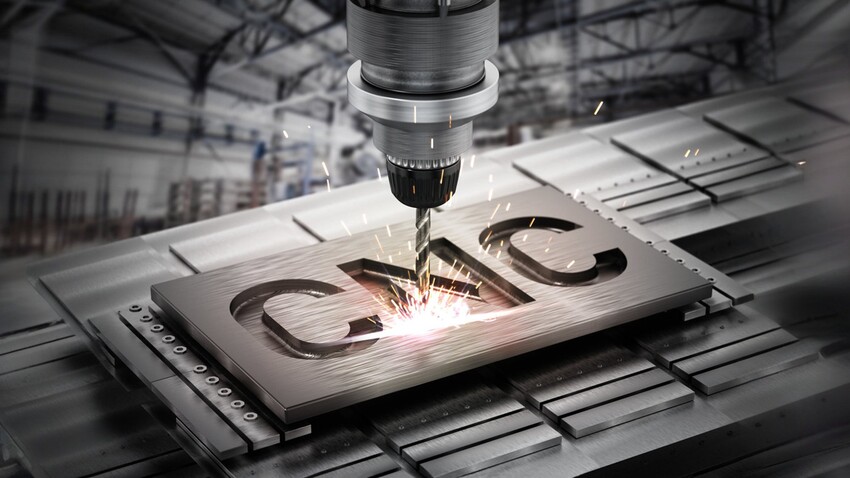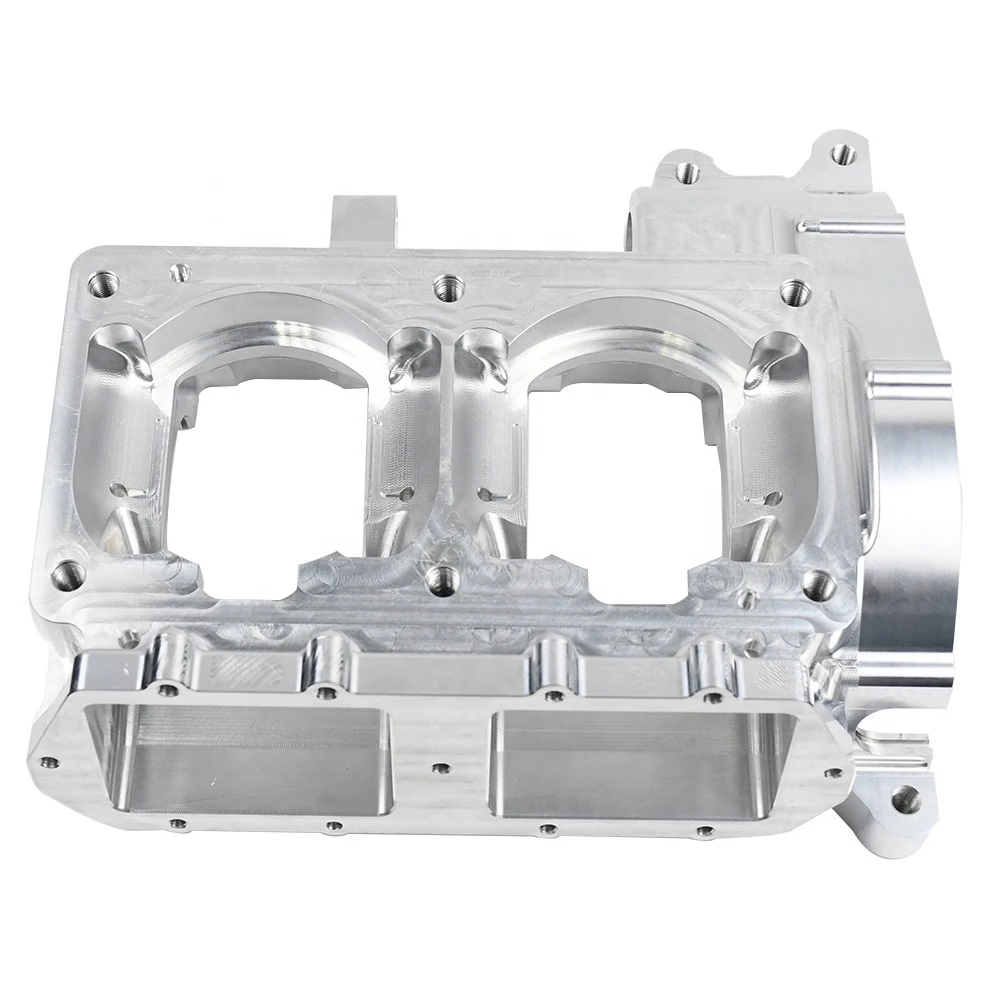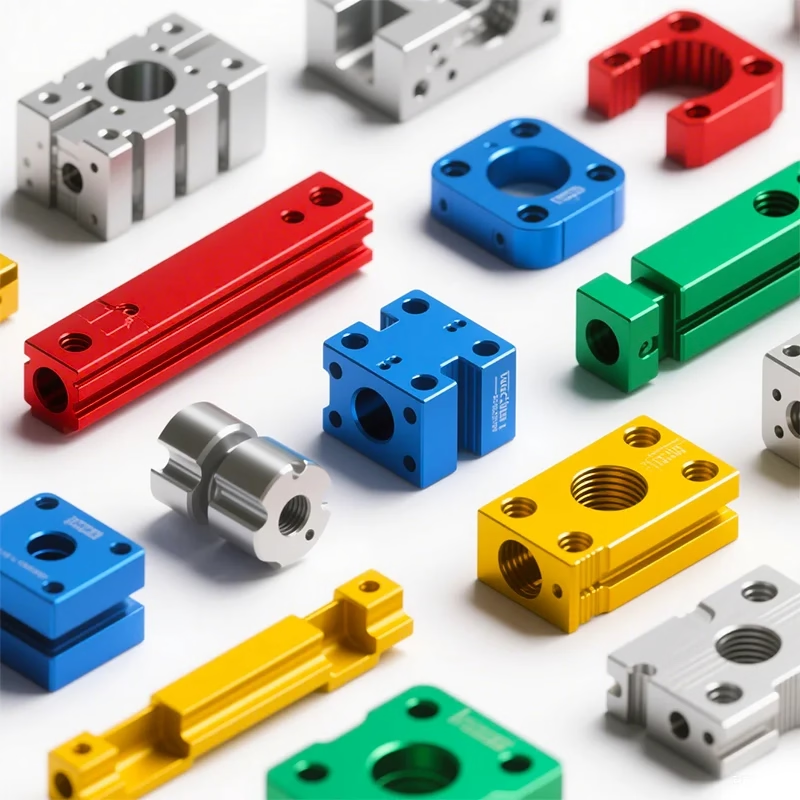
For designers, engineers, and makers, streamlining the journey from a digital design to a physical part is a constant pursuit. A common question that arises when using powerful software like Vectric Aspire is: Can I connect Aspire directly to my CNC machine? The short answer is no, not in the way you might connect a printer to a computer. However, Aspire plays a critical and seamless role in a highly automated workflow that gets your design to the machine efficiently and accurately. Understanding this workflow is key to leveraging the full power of both your software and hardware.
Let’s demystify the process and clarify the roles of each component in the CNC ecosystem.
The Clarification: Aspire is Not a Machine Controller
First, it’s essential to understand the distinct functions within the CNC process:
Design & Toolpath Creation (CAD/CAM Software – e.g., Aspire): This is where you create your 2D and 3D models and, most importantly, define how the CNC machine will make them. You select tools, set feed rates, spindle speeds, and define cutting paths (toolpaths). Aspire excels in this CAM (Computer-Aided Manufacturing) role.
Machine Control (CNC Controller): This is the hardware and software that directly operates the CNC machine. It reads a special set of instructions (G-code) and translates them into electrical signals that drive the motors, turn the spindle on/off, and control coolant. Examples include Mach3/Mach4, UCCNC, Centroid Acorn, Siemens, Fanuc, or the proprietary controller that came with your machine.
Aspire is a CAM software, not a machine controller. You cannot “install” Aspire on your CNC machine’s control computer in the same way you wouldn’t install Microsoft Word on your printer. Its job is to generate the instruction set (G-code file), which is then passed to the dedicated controller that runs the machine.
The Standard & Efficient Workflow: From Aspire to Finished Part
While a direct electrical connection isn’t possible, the standard workflow is remarkably straightforward and forms the backbone of modern CNC machining. Here’s how it works:
mermaid
graph TD
A[3D/2D Design in Aspire] –> B(Toolpath Calculation & Strategy in Aspire);
B –> C{Post-Processor Selection};
C –> D[Generate Machine-Specific G-Code File];
D –> E[Transfer File via USB/Network/Direct Link];
E –> F[CNC Controller Loads & Interprets G-Code];
F –> G[CNC Machine Executes Program];
G –> H[Finished Precision Part];
Step 1: Design and Toolpathing in Aspire
You create your model and define all machining operations within Aspire. This is where your manufacturing expertise is applied—selecting the right tools, stepovers, and strategies for roughing and finishing.
Step 2: Post-Processing – The Critical “Translator”
This is the heart of the connection. When you’re ready to generate code, you select a Post-Processor within Aspire. A post-processor is a small, crucial file that translates Aspire’s generic toolpath information into G-code that is specific to your brand and model of CNC controller. For instance, the G-code syntax for a Mach3 controller is slightly different from that for a Haas or Fanuc control. Vectric provides a large library of post-processors for common controllers.
Step 3: File Transfer
The output of this process is a .nc, .tap, or .gcode file. This file is transferred to the computer running your CNC controller. This can be done via:
USB Drive: The most common method for hobbyist and small shop machines.
Network Connection: Common in professional settings.
Direct Serial/USB Cable: If the controller PC is the same one running Aspire, you simply save the file to a folder the controller software monitors.
Step 4: Machine Control
You load the G-code file into your machine control software (e.g., Mach4, UCCNC). The controller software then reads this file line by line, sending the commands to the machine’s drives. You use the controller interface to set your zero points, run the program, and control the machine during operation.
Why This Separation is Actually a Strength
This delineation of roles is a feature, not a bug:
Specialization: CAM software like Aspire focuses on optimal toolpath generation and material simulation. Controller software focuses on real-time motion control and machine reliability.
Flexibility: You can design and prepare toolpaths on a powerful desktop computer in your office, then transfer the file to a rugged, dedicated industrial PC in the shop that’s optimized solely for machine control.
Safety: Isolating the complex, resource-intensive CAM process from the real-time machine control enhances stability and prevents software crashes from causing machine accidents.
Professional Perspective: Integration in an Industrial Setting
In a high-throughput, professional environment like GreatLight CNC Machining Factory, this workflow is elevated and fully integrated. Our engineers use advanced CAM software (similar in principle to Aspire but often industry-specific like Hypermill, Mastercam, or Siemens NX) to program complex 5-axis toolpaths for challenging parts. The generated G-code is then sent over a secure network to the machine’s native controller (e.g., a Heidenhain or Siemens control on a DMG Mori 5-axis mill).
The “connection” is seamless and digital, but the architecture remains the same: CAM Software -> Post-Processor -> Machine-Specific G-Code -> Machine Controller -> Physical Machining.
For our clients, this means they simply provide their 3D CAD models. We handle the entire digital chain—from selecting the optimal machining strategy and post-processor to running the program on our advanced equipment—delivering a precision-finished part without them needing to worry about the software-hardware interface.
Conclusion
So, can you connect Aspire directly to your CNC machine? While a single-click, direct physical connection isn’t the reality, Aspire is fundamentally and seamlessly connected to your CNC machine through a robust, standardized, and highly reliable digital workflow centered on the post-processor. Understanding this flow—from design in Aspire, through post-processing, to execution by your machine’s controller—empowers you to use both tools effectively. For businesses seeking to bypass this complexity entirely and obtain ready-to-use precision components, partnering with an expert manufacturer like GreatLight Metal Tech Co., LTD. ensures that this entire technical pipeline is managed by specialists, guaranteeing optimal results from your design to the final machined part.
FAQ: Connecting CAD/CAM Software to CNC Machines
Q1: What is a post-processor, and why is it so important?
A1: A post-processor is a translator. It converts the generic toolpath data from your CAM software (like Aspire) into the specific G-code dialect that your particular brand of CNC machine controller understands. Using the wrong post-processor can lead to machine errors, crashes, or incorrect parts.
Q2: My machine came with its own controller software. Can I use Aspire with it?
A2: Almost certainly, yes. The key is finding the correct post-processor. Check Vectric’s library for one matching your controller (e.g., “Mach3 Arcs (inch)” or “Grbl”). If one isn’t listed, you may need to modify an existing one or contact the machine vendor for support.
Q3: Is there any software that does control a CNC machine directly?
A3: Yes, the software that does this is called the CNC Controller Software (e.g., Mach4, UCCNC, LinuxCNC). These programs are designed specifically for real-time machine control. CAM software like Aspire is a partner to, not a replacement for, this controller software.
Q4: In a professional shop like GreatLight, how is the file transfer and management handled for dozens of machines?
A4: We utilize Digital Manufacturing Execution Systems (MES) and networked DNC (Direct Numerical Control) systems. CAM programmers generate and validate programs, which are then uploaded to a central server. Machine operators on the shop floor can then call up the correct program directly from the server to the machine controller, ensuring version control, traceability, and efficiency.
Q5: I’m outsourcing my part. What file should I send to the machine shop, my Aspire file or G-code?
A5: Always send your native 3D CAD file (e.g., STEP, IGES, SLDPRT). A professional manufacturer like GreatLight Metal will use their expertise to analyze your design, select the best machining strategy, tools, and post-processor for their specific equipment to ensure the highest quality and efficiency. Sending G-code ties their hands to your specific (and possibly unoptimized) process.