

Modeling of molten deposits(FDM) 3D printers work by moving a nozzle across the X, Y, and Z axes, extruding the filament at specific locations, and gradually building the part in layers. While FDM printing is very advantageous in some ways, the layer-by-layer printing process has its limitations.
An obvious disadvantage of FDM 3D printers is that they produce a “stepping” phenomenon on curves that intersect the Z axis. Other aspects of the printing process can also limit print quality, such as Z-stitching, inconsistent extrusion, etc.
Especially the sphere, it isOne of the most difficult geometries to 3D print, as they are more prone to step-like lines, require supports if you are printing an entire sphere, and the smooth curved surface means there is no somewhere to hide other printing defects. They can result in a rougher surface than usual, which is unlikely to be what you want if it’s a display piece, such as a spherical model of the moon.
Printing a sphere layer by layer will never be perfect, but there are ways to minimize imperfections and get the cleanest surface possible. In this article, Mohou.com will learn someTips for 3D printing spheres.
1. Design

Use your choiceThe CAD program’s split tool splits the model in two (Source: Jackson O’Connell via All3DP)
The first step to printing a sphere is to design it correctly, and there are actually two ways to do this: split it in half or keep it in one piece. Dividing the sphere into hemispheres will make printing easier and require no supports, but will increase post-processing time when you need to glue them together. (If your model is very small, you may not need to separate it as long as it adheres to the bed.)
If your sphere is part of a larger design, consider designing the parts to be printed separately and reattaching them later so you can give the sphere the attention it needs to succeed. Alternatively, you can keep the spherical shape in the model, but carefully consider the orientation when slicing.
Dividing a spherical object into two parts is simple. First, open your favorite3D design program and find the center point of a spherical object. Next, use the split tool (Planar or 2D Sketch) to split the model into two parts. Finally, export each section individually to print it individually. It’s best to print one hemisphere at a time to avoid issues with nozzle retraction when moving between each part.
If you keep the sphere as a whole, no special preparation is required. Simply export the model as usual, but note that you need to work on the overhang at the base of the sphere in the slicer. With that in mind, let’s move on to configuring the slicer!
2. Slice
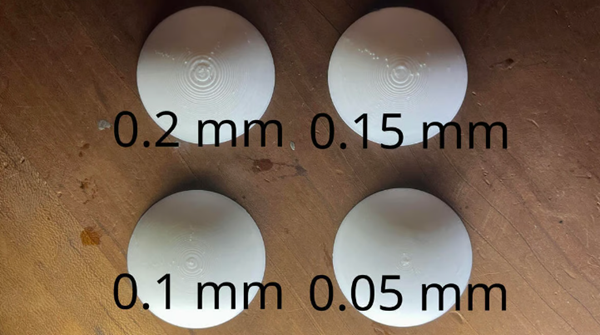
Smaller layer heights can significantly reduce the appearance of jagged lines (source:Adam Vicknair via All3DP)
Slicing the model is the next important step in printing the sphere, although adjusting the slicing parameters is key to a successful print. The print bed prints better and smoother, which means less sanding and post-processing.
Height from ground
To print a smoother sphere, a very versatile but useful setting is to use a smaller layer height. Simply put, higher resolution means that stepped curves are less obvious because more layers must be used to create the curves. Although this increases printing time since additional layers are needed to achieve the same height, the smoother surface you get with this simple adjustment is worth it!
Finer details and faster print speeds are also possible withFeatures such as Cura’s adaptive layer height are implemented; This setting is also available for other slicers, although the names may be different. Simply put, this feature variably changes the layer height throughout the cut model, so parts with less detail will be printed with thicker layers faster, while parts with fine detail will be printed with thinner layers. This is especially useful with spheres, as it will provide a smooth transition between layer heights, resulting in a natural, more rounded, less tiered look.
support
Supports are a key part of printing a sphere. In theory, a perfect sphere only touches the build plate at one point, so your print can roll without needing additional structure to hold it in place!3D printers cannot print in the air, so the expanded base of the sphere requires a support structure on which to print the sphere. If you split the model in half, you can avoid this need, as each hemisphere can be printed on its flat base.
Supports may leave marks or a rough surface after the support material is removed. To minimize the impact on the surface of the sphere, try to increase the distance between the support material and the overhang. (The relevant settings in Cura are “Support Z Distance” and “Support X/Y Distance”. ) Another idea suggested by a user is to use a layer of skin between the backing material and the overhang.
It may also be a good idea to use a raft or brim to further ensure adhesion of the bed surface to the ball piece. The raft and edges surround the support structure and the spherical area that contacts the build plate to secure them to the bed. This is important because without edges or rafts, the support structure can fall during the printing process!
filling and shell

Fewer shells let in more light (source:Jackson O’Connell via All3DP)
The infill and shell are the main parts of the print, as they represent the interior infill and the exterior surfaces (top and bottom layers and walls), respectively. The amount of filler and shell is less critical to the appearance of the sphere’s surface, but should be set based on the purpose of the part. These settings affect how light passes through an object, which is useful if you’re printing something like moonlight, for example.
For infill, lower than normal infill densities may be used unless the part requires internal structural strength. This will avoid the risk of the infill pattern bleeding into the wall. Lower infill density also means less printing time.
If you want a certain level of transparency, try using a smaller number of shells (around two). That said, consider that a lack of hull and a very small amount of filler can cause load voids to sag where they meet the hull. To avoid this, when the filling density is approx.10% or less, consider using three or more speakers. If you want a solid-looking surface and sturdier pieces, increase the number of crates.
For a sphere, regardless of its purpose, always keep the number of wall layers equal to the number of top and bottom layers. Indeed, if one number is larger than the other, the sphere will have unequal weighting.
Other slicer suggestions

Activating vase mode will keep the sphere hollow (Source:Jackson O’Connell via All3DP)
If your spherical part is not a normal sphere, you also need to consider its orientation. If you can’t split the piece in half, the bottom half will need a lot of support, so keep in mind that removing supports can damage details. If your sphere is part of a larger model, try to position the model so as to minimize the support required by the sphere itself.
Our final slicer setup suggestion is to use vase or spiral mode, provided that your spherical object does not need to be very solid. Vase mode only prints the perimeter of spiral objects, making it ideal for cylinders and other round and hollow objects. This will reduce material consumption and printing time, allowing light to pass through (since there is no infill). Just make sure you don’t forget to enable supports, otherwise the print may fail.
three,3D printing
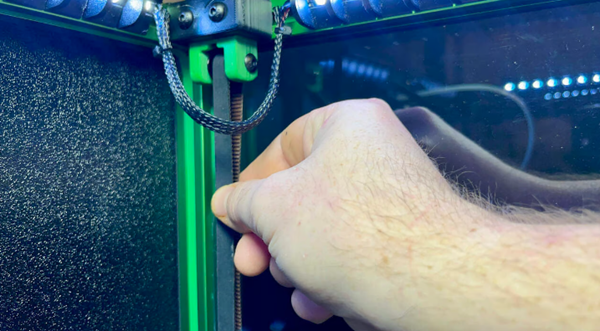
This way, your circle will not turn into an oval (source:Adam Vicknair via All3DP)
There’s not much to discuss when it comes to printing spherical objects, but before you start printing, check your printer’s regular maintenance. This means checking whether belts, nozzles, beds, etc. are working properly. work correctly.
To ensure that the ball shape does not turn into an egg shape, make sure theTighten the belts on the X and Y axes. A loose belt will allow the print head or bed to become loose, so a perfect circle will start to look a bit oval.
Remember to make sure the nozzle is clean and tidy, as a partially (or completely) clogged nozzle can cause inconsistent extrusion and worsen surface quality. As with any print, remember to level the bed before you start printing so that the first layer is nice and flat.
Finally, consider usingABS and other materials print spherical objects. While other materials like PLA have similar printing success rates, ABS has a simple layer smoothing option so the end result can be more impressive. If you have a dual extrusion printer, try printing any support material with a soluble material such as PVA, as this will prevent surface damage caused by removal of the support.
4. Post-processing

When sanding, try to focus on the seams and not ruin any details of the part (Source:RCLifeOn via YouTube)
Finally, to post-process the sphere, you should try to smooth out the visible layer lines. Fortunately, there are many post-processing techniques available, depending on your print, materials, equipment, and experience level. Some good options for spheres include sanding, using solvents, polishing, and coating.
The first step to take is to remove any support from your print. Carefully use a utility knife to remove any pieces of support stuck to the model. If you printed the model in two parts, you may not need to remove the supports, but you can use superglue orAn adhesive such as a 3D pen holds the hemispheres together. When aligning the two halves, be as perfect as possible to achieve an even transition.
Next, sand the model with sandpaper, starting with a low (coarser) grit and working your way up to a high (finer) grit. If you are gluing two hemispherical pieces together, be sure to smooth the transition between them and evenly sand all areas of the sphere to achieve the best surface finish.

Marbled or speckled yarn helps hide diaper lines! (source:Adam Vicknair via All3DP)
If you useWhen printing a model with ABS, you can use solvents such as acetone to add a smooth, shiny surface to the model. The purpose of the solvent is to lightly melt the surface to blend the layers and eliminate visible lines. If you are printing parts in PLA, you can use an epoxy coating (like XTC-3D) to smooth and finish the object.
Finally, you can polish, paint or coat your model for the finishing touch. Spray painting a sphere can hide an object’s imperfections, add or emphasize details, or change the color. For a shiny finish, try usingA rotary tool such as a Dremel spins the polishing material at high speed, or you can polish by hand.
Here’s how to print a spherical object that looks great anywhere!
Daguang focuses on providing solutions such as precision CNC machining services (3-axis, 4-axis, 5-axis machining), CNC milling, 3D printing and rapid prototyping services.



















