

3D Printing Troubleshooting: A Collection of All Problems and Solutions (FDM and SLA)
I think you have encountered many printing failures, such as warping of printed parts, print bed sticking, layer shifting, etc.3D printing errors and other problems, today, based on our 3D printer troubleshooting experience, Mohou.com has compiled the most comprehensive guide to diagnosing and fixing common 3D printing problems related to FDM and SLA technology.
FDM 3D Printing Issues:The printing effect is very bad (2)
1、3D Printing Troubleshooting: Overhangs are Cluttered
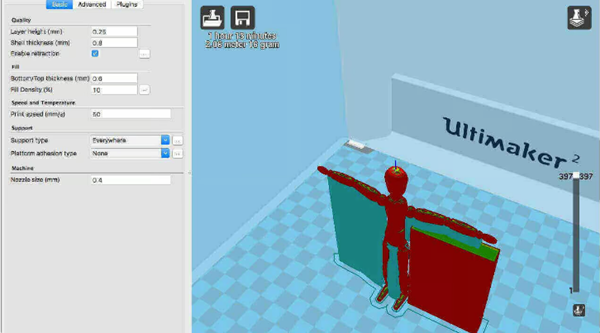
Add supports
The simplest and quickest solution is to add supports. Most cutting software lets you do this quickly.
exist In Simplify3D, click Edit Process Settings > Supports > Generate Supporting Material; you can adjust quantities, models and parameters. In Cura, simply select the desired media type from the basic settings.
Create supporting material in the template
Software-generated supporting material can sometimes cause interference, causing the supporting material to get stuck in places where it cannot be removed. Creating your own supports in a modeling application is a good option. This requires a little more skill, but can produce fantastic effects.
Create a support platform
When printing type, arms and other extruded parts are the most problematic areas. Using supports on the print bed can also cause problems, as they often have to travel considerable vertical distances; this distance is a major cause of problems for structures which must be easily dismantled and fragile.
It might be a good solution to create a solid block or wall under the arms etc. and then create a smaller support between the arms and the block.
Adjust wall angle
If you have shelf-style overhangs, a simple solution is to tilt the wall 45 degrees so the wall can actually support itself without needing any other type of support.
Disassemble the parts
Another way to visualize a pattern is to divide it into different prints. On some models, this allows the overhang to be flipped over so that it becomes the base. The only problem is that you have to find a way to glue the two pieces together.
2、3D Printer Troubleshooting: Rough Surface Area Under Support

Check the location of support structures
Most slicing software allows you to choose whether the support structure contacts the build plate or “Everywhere”. For most models, “touching the build plate” is sufficient.
Check the printerFunction
Often people use supports without realizing how easily their printer can fill gaps and print at relatively steep angles. Most printers bridge without error 50mm gap and print at 50º angleso you should first test print and familiarize yourself with the functions of your printer.
Adjust assist mode
Depending on the model type, you can get better assistance simply by changing the assistance mode.-Model interface; try switching from “Grid” mode to “Zigzag” mode;。
Reduce media density
In the slicing software, change the view to “Layer”, then visualize the support structure. Software by default often enforces dense support structures. If you reduce the density, the support structure will become weaker, but as long as your printer is set up correctly, this should not be a problem. In Cura, a support density of 5 can be used successfully, which significantly reduces the impact of the structure on the model surface.
Reduce the printing temperature
Carefully check the filament temperature range and adjust the hot end temperature to the lowest temperature of the material. This may result in a weaker bond between layers, but will also make it easier to remove the support structure.
Dual extrusion and soluble support materials
This is an expensive solution, but if most of your prints use complex support structures, a dual extrusion printer like Ultimaker 3 or Cel RoboxDual) are really the only options. The emergence of water-soluble support materials (such as PVA) makes it possible to achieve complex printing effects without completely sacrificing surface finish.
Better yet, you can add supports into cavities where standard print material supports were previously impossible to remove, meaning more complex prints are within your reach.
3. 3D Printer Troubleshooting: Printingunusually weak/Poor appearance (non-creased edges)

Use the latest cutting software
Most of the latest slicing engines support automatic fixing of unfolded edges, but it’s always a good idea to make sure your model is correctly shaped and ready to print.
to use stl file repair software for repair
If you are already using the latest slicer software, you may have noticed a notification telling you that your The STL file has unfolded edges. Of course, there is software that can help you fix it, and if your slicer can’t be fixed, there are plenty of STL file repair software options available, both desktop and web. It’s a simple and easy task, just upload the file to your software of choice, let it identify all the broken parts and follow the instructions. If you’re not getting notifications on your slicer, but your print looks like a weird, messy ball, your file has non-malformed edges. Try STL file repair software. This may not solve the problem, but it’s definitely something to try.
exist Fix “non-collector” issue in Simplic3d
Edition Click the “Advanced” tab in “Process Settings” and select “Repair” next to “Unfolded Segment.”
Use layered view
Use the layer view in your slicing software to inspect the model to see where problems are occurring. Quickly going through the layers will often highlight issues that are easy to fix.
Use modeling software to solve problems
One of the easiest ways to solve the problem of uneven model edges is to use software;Software like Blender and Meshmixer have built-in features that can quickly highlight issues with a model and fix them before slicing.
Merge objects
In fact, it is better Repair the 3D model before importing it into the slicing software. To do this, make sure you choose the appropriate Boolean function to cut, merge, or subtract when two objects intersect or overlap.
4、3D Printer Troubleshooting: Fine Details Not Printing Correctly

Increase resolution
Increase resolution–Tighter and lower layer heights will result in smoother successful prints.
Nozzle diameter
The smaller the nozzle diameter, the higher the print detail. But smaller nozzles also mean tighter tolerances, requiring machine height adjustments.
Maintain your printer
Any additional friction caused by misaligned rods or loose belts will be immediately apparent when printing. Make sure all parts are aligned properly.
Clean the nozzle
Before you start printing in detail, make sure your nozzles are clean.
to slow down
Reduce printing speed–Slow extrusion is less error prone.
Use high quality filament
Choosing the right material from a quality filament manufacturer is essential to achieving high quality prints.
Check platform level
Perform the printer calibration procedure and verify that the platform is level.
5、3D Printer Troubleshooting: Ripples and “Echoes” in Prints
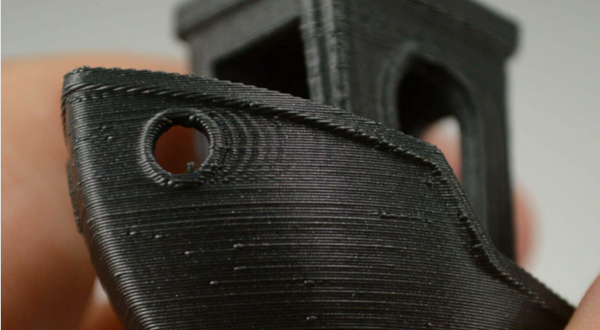
Reduce vibrations
Make sure your The surface used by the 3D printer is solid and there is no visual vibration when the printer prints.
Check the bearings
Linear bearings wear out over time, check if all bearings are still working properly after turning off the printer.
Make sure everything is tight
A loose bolt can affect print quality, so make sure all bolts are tightened as part of routine maintenance.
Go on
Check all the rods for dust and dirt, then put a drop of engine oil on them to make sure everything is well lubricated.
Slow down print speed
Reduce the printing speed.
Adjust firmware acceleration
For advanced users only, please check the printer firmware, adjust the acceleration and jerk values in the code, and then download the firmware to the machine again.
6、3D Printer Troubleshooting: Diagonal Scars on Prints

comb
Combing holds the print head above the printed area of the model, reducing the need for retraction. Although this increases printing speed, it can also cause scratches. Disabling carding will resolve the issue in most cases, but print times will be extended.
retract
If you have disabled grooming and the problem persists, try increasing the degree of retraction. If the problem persists, check the overextrusion or nozzle temperature.
Check the extrusion quantity
The method of adjusting filament flow varies from printer to printer. to use For the Cura and Ultimaker series, you can find the flow details on the machine in the material settings on the Ultimaker 2 and on the Ultimaker 3 in the custom settings of the Cura software.
Reduce flow 5%, then print a calibration cube to verify that the filament is properly extruded and eliminate the problem.
Nozzle temperature
The strength of a good quality filament should in principle solve this problem, but if your filament has been left for any length of time, exposed to humidity or sunlight, you may find that the filament’s temperature tolerance is reduced . Lower the temperature of the hot part 5ºC and try again.
Z-Lift
The filament isn’t the only problem; if the print head is not elevated enough from the print surface, the nozzle itself can cause scarring when moving from one layer to the next. On older printers, if you don’t have one Z-lift or Z-hop settings you need to recalibrate, otherwise Z-Hop or Z-Lift needs to be increased in 0.25mm increments.
7、3D printing troubleshooting: Print appears streaky and sagging (overextrusion)
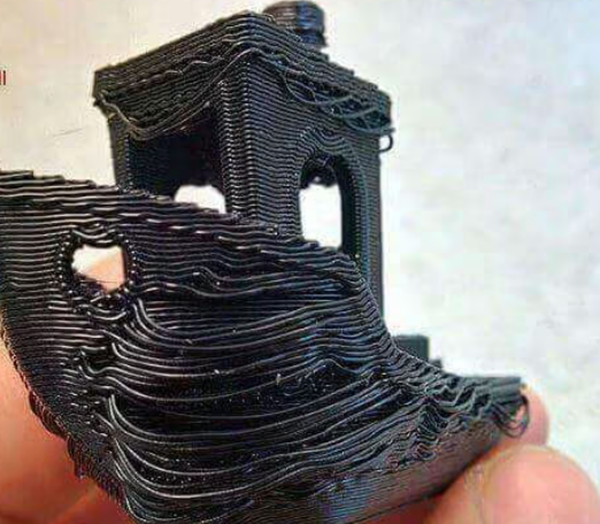
Extrusion ratio
Open the cutting software and verify that the correct extrusion rate is selected.
Traffic Settings
If everything looks OK, lower the flow settings in the printer software.
8、3D Printing Troubleshooting: Underextrusion

Check filament diameter
Starting with the simplest question, have you set the correct filament diameter in your slicing software? If you are unsure of the diameter, the value and recommended temperature are usually printed on the box.
Measure the filament
If you are still not getting the results you want and the problem is filament flow, use a caliper to check the filament diameter. You should be able to fine-tune the filament diameter setting in the microtome software settings.
Check the hot end for debris
After printing is complete, most printers lift the print head off the print base. Quickly inspect the nozzle for filament and dirt buildup.
Set extrusion rate
If the actual filament diameter does not match the software settings, the extrusion rate (also called flow rate or flow compensation) may be too low. Each application of the microtome has slightly different processing methods, but the principle is as follows: Increase this value in 5% increments until the problem is resolved.
9、3D printing troubleshooting: prints appear melted and distorted
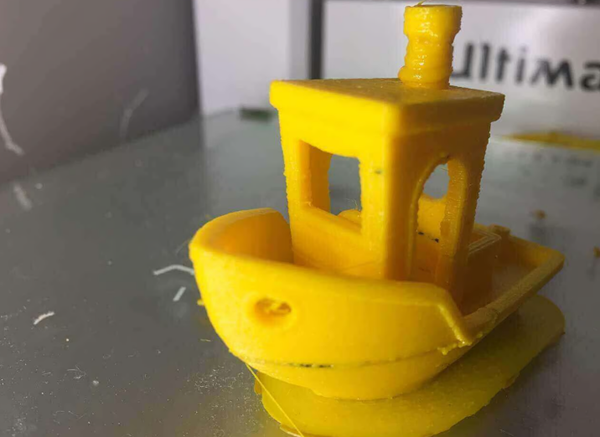
Check recommended material settings
This may seem obvious, but you just need to check that you are providing the correct material details to your printer. The latest filament temperature range is Between 180 and 260°C, it is therefore easy to make a mistake.
Reduce the temperature of the hot part
Reduce the hot end temperature in the printer or software settings. Depending on the severity of the overheating, the Lower the temperature by 5ºC at intervals.
Increase printing speed
If the filament does not change color, you can try printing faster.
Adjust the fan
Make sure the cooling fan is facing the hot end. Check that they are in the correct position and, if possible, increase their speed to increase the airflow that cools the filament.
10、3D Printing Troubleshooting: Dimples and Cavities in the Top Layer (Pilling)
Filament size
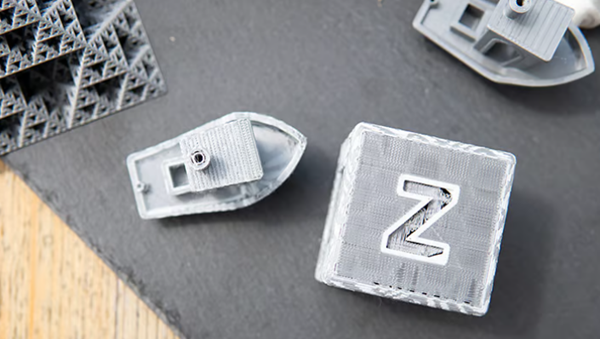
Pilling is a problem that can affect everyone Problem with 3D printers, but more common on printers using 1.75mm filament. If none of the tips below help, try switching to 2.85mm filament.
Check fan position
Cooling can be one of the causes of pilling. The printer fan is usually set to low speed or off when printing begins, then turns on after the first layers are printed. Check to see if the fan around the hot end starts to spin, especially at the end of printing. If the fan seems to be working normally, the problem may be because it is not directing enough airflow during the printing process. There are many 3D printing mods can change print airflow.
existAdjust fan speed in G code
Another cooling problem occurs when the top layer of molten plastic is used continuously. As the molten plastic covers the internal support structure, it must cool quickly to avoid falling into the holes between the support structures. Can be found in Adjust fan speed in G code.
Common uses for turning on the fan The G code is M106 and the common G code for fan stop is M107. With these control lines you can simply set the maximum fan speed to maximum.
For example, we can look at G code for a 1cm x 1cm cube printed with a layer height of 0.1mm (generated in Cura for printing on Prusa i3), having 97 layers in total. We know that the “Bottom/Top Thickness Adjustment” is 0.6mm, so we can go back to ;LAYER:91 and add M106 S255 in the following lines. M106 runs the fan and S255 runs the fan at full speed.
Increase the thickness of the top layer
The simplest solution is to increase the thickness of the top layer. Most applications allow you to Do this in the “Bottom/Top Thickness Settings”. As a general rule, you should aim for at least 6 layers of material, up to 8 layers for smaller nozzles and filaments. If the layer height is set to 0.1mm, then the “Bottom/Top Thickness Adjustment” should be set to 0.6mm. If the pilling effect persists, increase it to 0.8mm.
11、Troubleshooting a 3D printer: prints lose dimensional accuracy
Check work units of measurement
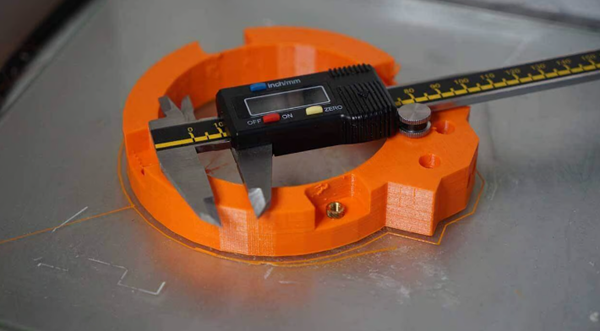
in your In your 3D printing application, make sure you select the correct actual size.
Check the measurements
If you are designing a part that needs to be connected to something else, check your measurements with a digital caliper.
Screw hole size is too large
If you are making a screw hole, create a virtual 3D with a diameter slightly larger than the actual diameter. M5 screws and use them to extract/create a boolean subtraction of the model where you need the holes.
Increase the number of polygons
Reducing the number of polygons in your model may cause issues with slightly flattened edges. Make sure the polygon count is within a reasonable range for smoother gradients and better adjustments.
Test printer accuracy using a test cube
to use 3D print a calibration cube to check the X, Y, and Z dimensions of the print.
Check nozzle temperature
If beads or other stray extrusions appear inside the print hole, try lowering the print temperature.
Check belts and guides
Check the belt tension and make sure all axles are straight and properly aligned.
Daguang focuses on providing solutions such as precision CNC machining services (3-axis, 4-axis, 5-axis machining), CNC milling, 3D printing and rapid prototyping services.



















